

Compressing files and folders
Compressed files take up less disk space than uncompressed files, so compressing is useful for making backup copies of your data or for sending information over the Internet.
To compress items:
Do any of the following:
-
Select the item or items you want to compress and choose File > Compress.
-
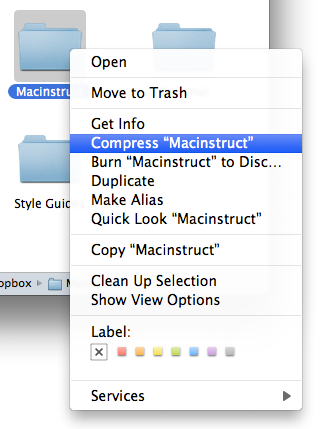
Control-click an item and choose Compress from the shortcut menu.
-
In a Finder window, select one or more items and choose Compress from the Action menu (looks like a gear).
If you compress a single item, the compressed file has the name of the original item with the .zip extension. If you compress multiple items at once, the compressed file is called Archive.zip.
To uncompress (expand) an item:
Double-click the .zip file.
Here is another way to compress files and folders:
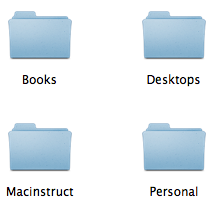
- Locate the file or folder you want to compress. You can select multiple files and folders by holding down the Shift key (for multiple items) or the Command key (for several individual items) and clicking.
- After you've selected the files and folders, right click on them, and then select Compress.
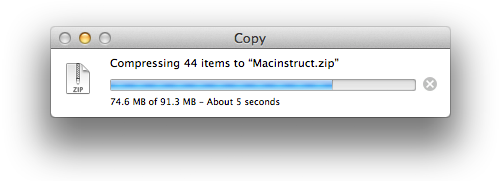
- A window will appear indicating that your Mac is compressing the files or folders. Depending on the size of the files or the folders, this could take a couple minutes.
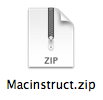
- Once your Mac has finished compressing the files or folders, you'll see a nice little zip file. This contains all of the files and folders you selected to be compressed. Just send this to your Mac- or PC-using friends - they'll be able to open it. All Mac users have to do to open the zip file is double-click it!